
Before you clear them all
- Look for the ones you still need. Tickets, addresses, receipts and codes often exist only as a screenshot.
- Check your backup. Deleting in Google Photos also removes the backed-up copy and the copy on your phone.
- Pick a way with a trash. Then a mistake can be undone for 30 days.
With Files by Google
- Open Files by Google, tap the menu and choose Clean.
- On the Old screenshots card, tap Select files.
- Pick the ones to go. If your version shows All items at the top, that picks every one.
- Tap Move to Trash and confirm.
This card only offers screenshots more than four weeks old, so your newest ones stay. They wait in the app's Trash for 30 days.
In Samsung Gallery
- Open Gallery, tap Albums and open Screenshots.
- Touch and hold one screenshot. Tap All at the top left if you see it, or tap the others one by one.
- Tap Delete, then Move to Trash.
They wait in Gallery's Trash for 30 days. If your Gallery is linked to Google Photos, check your backup first.
In Google Photos
- Open Google Photos and find your Screenshots folder in the library.
- Tap and hold one screenshot, then tap the others you want gone.
- Tap Trash.
Google's instructions only cover picking them by hand, so a big pile is quicker another way. This removes the screenshots from your phone and from every device with backup turned on, and they wait in the trash for 30 days.
The way with no trash
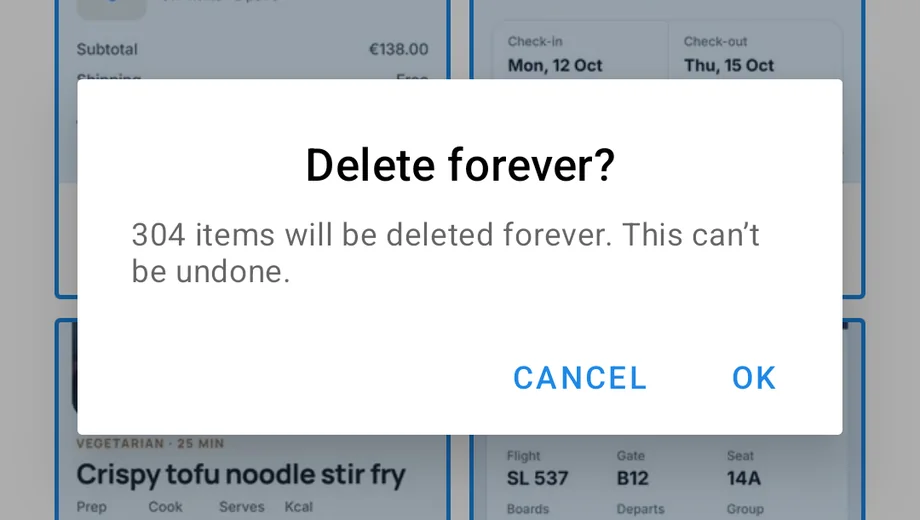
Android has a built-in Files app of its own. If yours has no Clean option, it may be this one. Open it, tap the menu at the top left and choose Images, then open Screenshots. Touch and hold one screenshot, tap the three dots at the top right and choose Select all, then tap Delete.
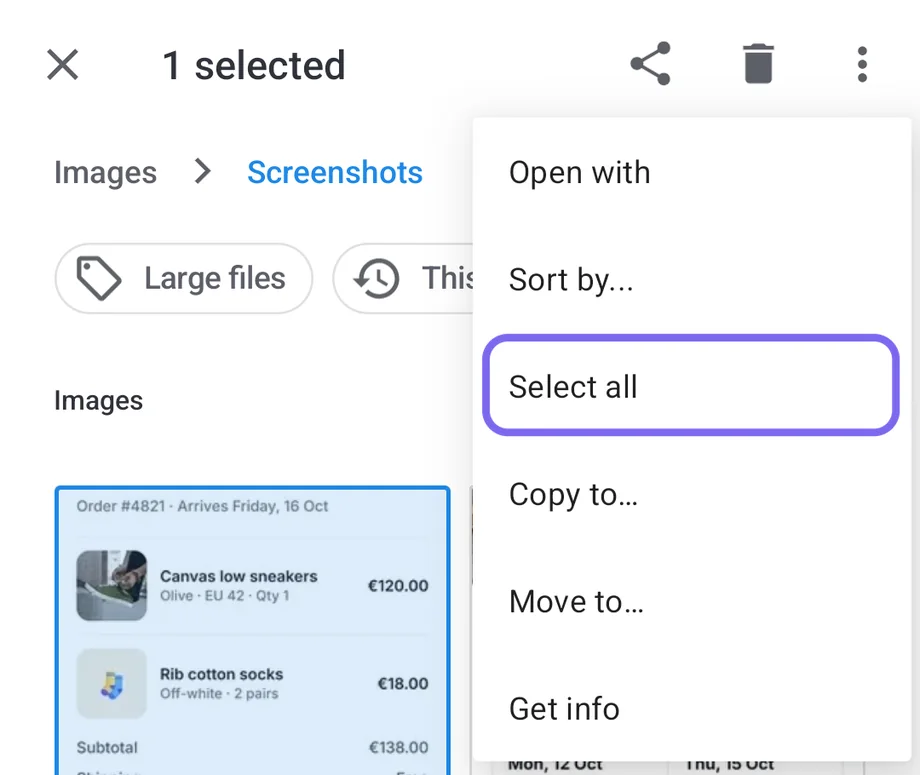
This can't be undone. Android warns that everything will be deleted forever, and nothing goes to a trash. Only use it if you're sure.
When you get the space back
A screenshot in the trash still takes up space. The space returns when the 30 days are over, or when you empty the trash yourself. Emptying is permanent, so look through it first. To bring something back before then, open the same trash, select it and tap Restore.
More guides
- How to organize screenshots on AndroidWhere they're saved, folders, and keeping them findable.
- How to delete duplicate screenshots on AndroidFind copies and clutter safely, with a way back.
- How to find a screenshot by its text on AndroidSearch the words inside your screenshots.
- Is there a Pool app for Android?Where Pool stands on Android, and what works today.
- All guidesEvery guide in one place.